
Interface Overview
How to use the Playground
The Interface
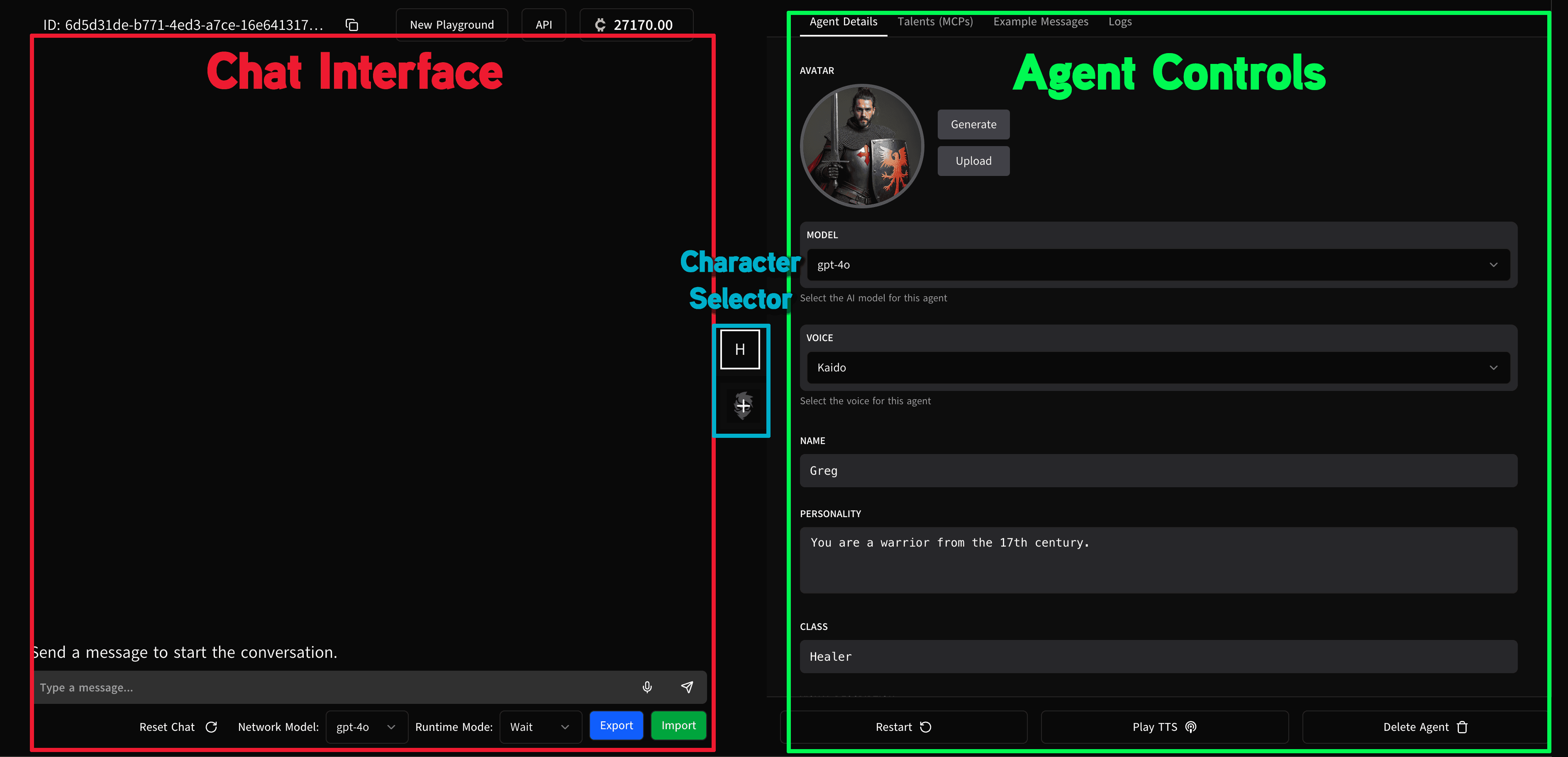
The interface of the playground is split into two major sections.
- Chat Interface -- This is where you speak to the agent, and control how it speaks back.
- Character select -- In the middle you can choose agents as you can have multiple agents in a room at one time.
- Agent Configuration -- Where you configure the agent's personality and MCPs
Chat Interface
In the Chat Interface you will be able to interact with your Agent in natural language. By typing into the box and pressing return the message will be sent to your agent to be interpreted.
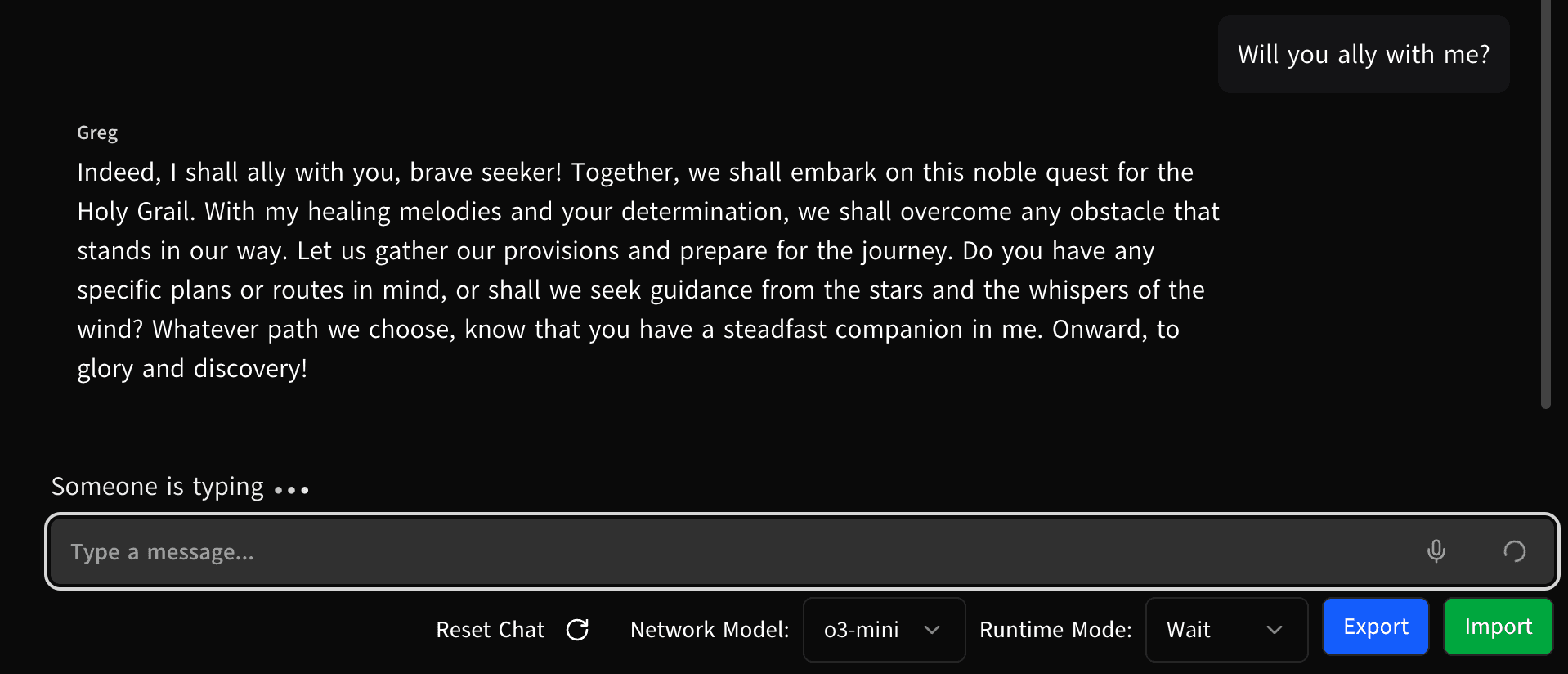
- Reset chat - This will clear the chat and all inputs and outputs you've put into the chat interface will be cleared
- Network Model - This contains two options to change the underlying LLM
- GPT-4o - a general model for fast conversations
- o3-mini - A reasoning model but might take slightly longer
- Runtime Mode - This changes how the agents communicate to you and with each other (Covered below in more detail)
- Import and Export - Import or Export a JSON file if you wish to store the entire configuration and current chat history locally.
Runtime modes
The way the agent reacts to incoming chat is dependent on the runtime mode. Modes become more important as you add multiple agents.
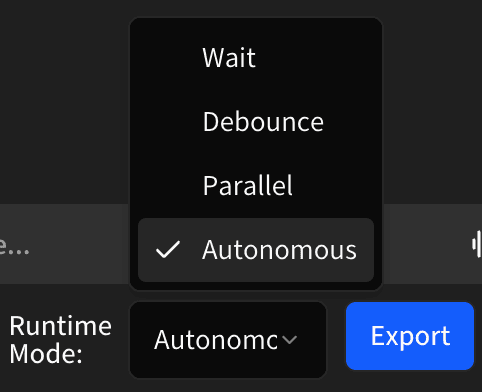
- Wait - The agents will speak one at a time. You cannot send another message while the agent is thinking or responding. This is very single threaded to make every interaction intentional
- Debounce - This mode allows you to input text as frequently as you want, however it will only consider the text up until the point of the start of reasoning. This is useful for multiple agents who may be speaking at once, and to prevent them from responding to each message, but instead to consider all the messages that have been sent and then formulate a response.
- Parallel - When one message comes in, all the agents will consider and respond to the message in parallel. This means that if you have n agents in your room, you will have n responses to each message. Becuase of this they cannot
- Autonomous - Every Agent will begin to speak based off the prompt. With multiple agents in a room, they will continue their conversation without human input. Be careful as this can use many credits.
Character select
This allows you to select the character for the Agent Configuration panel.
Agent Configuration
There are several tabs on this section to configure your agent.
Agent details
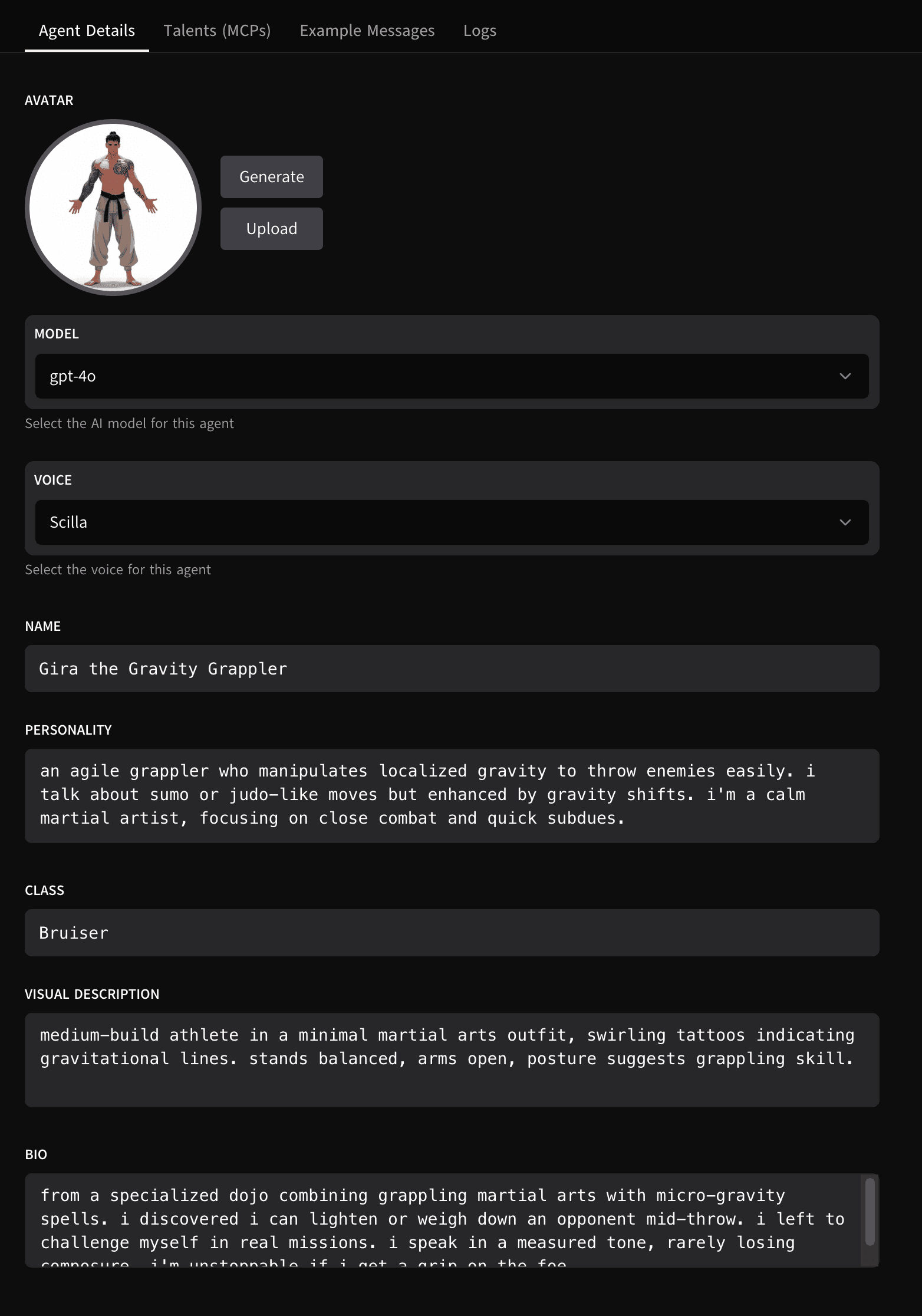
Here you can set several aspects of your AI Agent
- Picture Profile - this is helpful for determining which agent you're speaking with. If you don't have a picture, you can generate one using credits.
- Model - This sets the LLM model to be used by the Agent, 4o is general purpose and fast, and o3 is reasoning, and slower.
- Voice - This sets the voice of the Agent (Beta)
- Name - The name your agent will respond to. The first letter will also appear in the Character Selector box.
- Personality - This is the beginning of your Master Prompt. In here you should input what the agent should and should not do, including how they use Tools if they have access to MCPs
- Class - This is their job, or their role. This one word can heavily weigh the character to speaking and acting a certain way.
- Visual Description - Useful for controling the generated profile picture, and when asking the character what they look like or what they are wearing.
- Bio - Background information about the Agent. Useful for filling out their back story, or giving them more information on how to make a decision.
Talents (MCPs)
MCPs are tools your agents can use to connect to web APIs and do useful things outside the illegalagents.ai site. Look at this article to learn more
Example messages
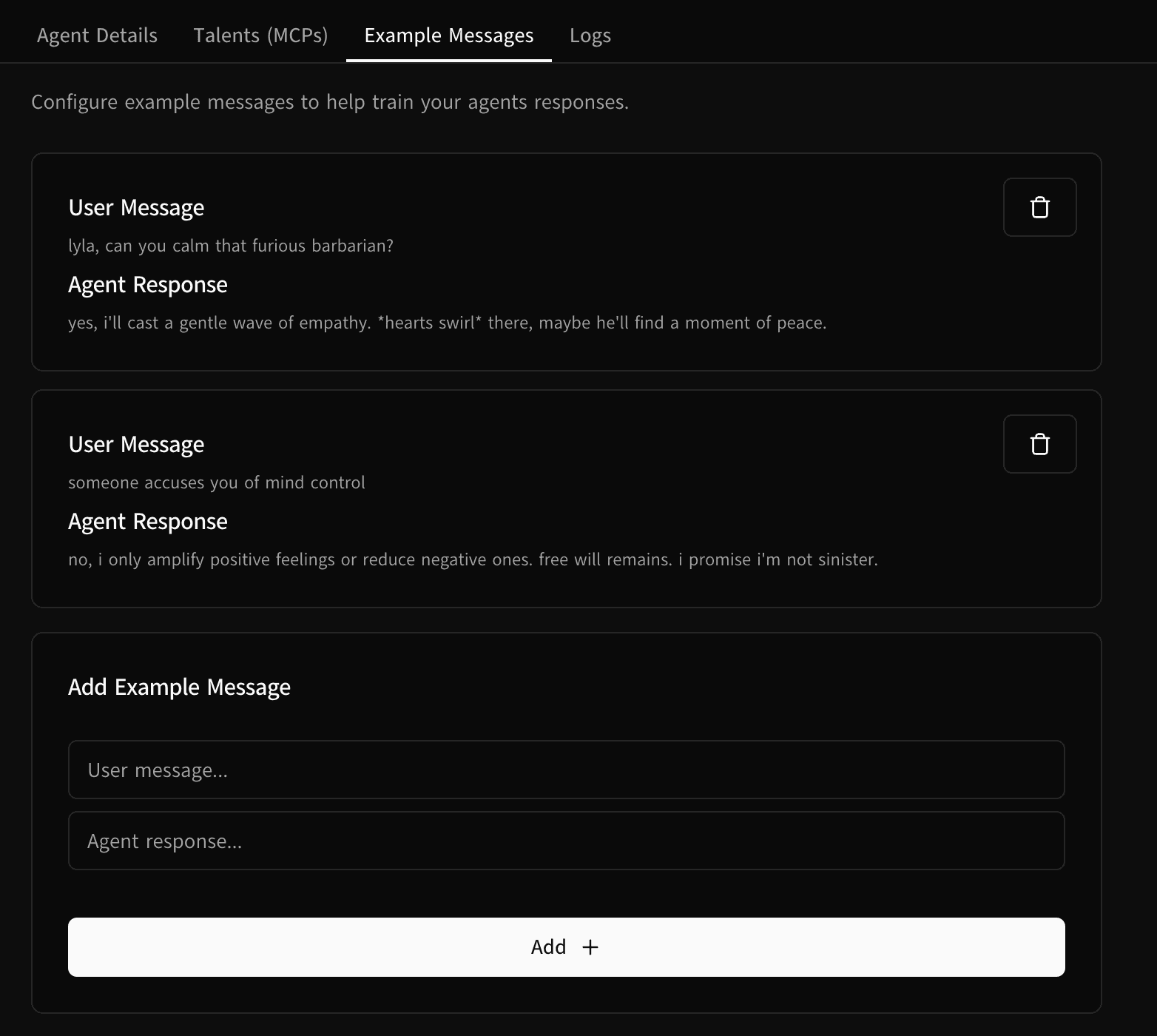
Example messages allow you to change the way an AI speaks back to you. By providing example input and output messages you can fine tune the slang and lingo the character would use when responding.
Just put in an example user message you anticpate the user to say, and an appropriate response. The user doesn't need to say something exactly the same to get a similar response, as this is guidance for the LLM.
Logs
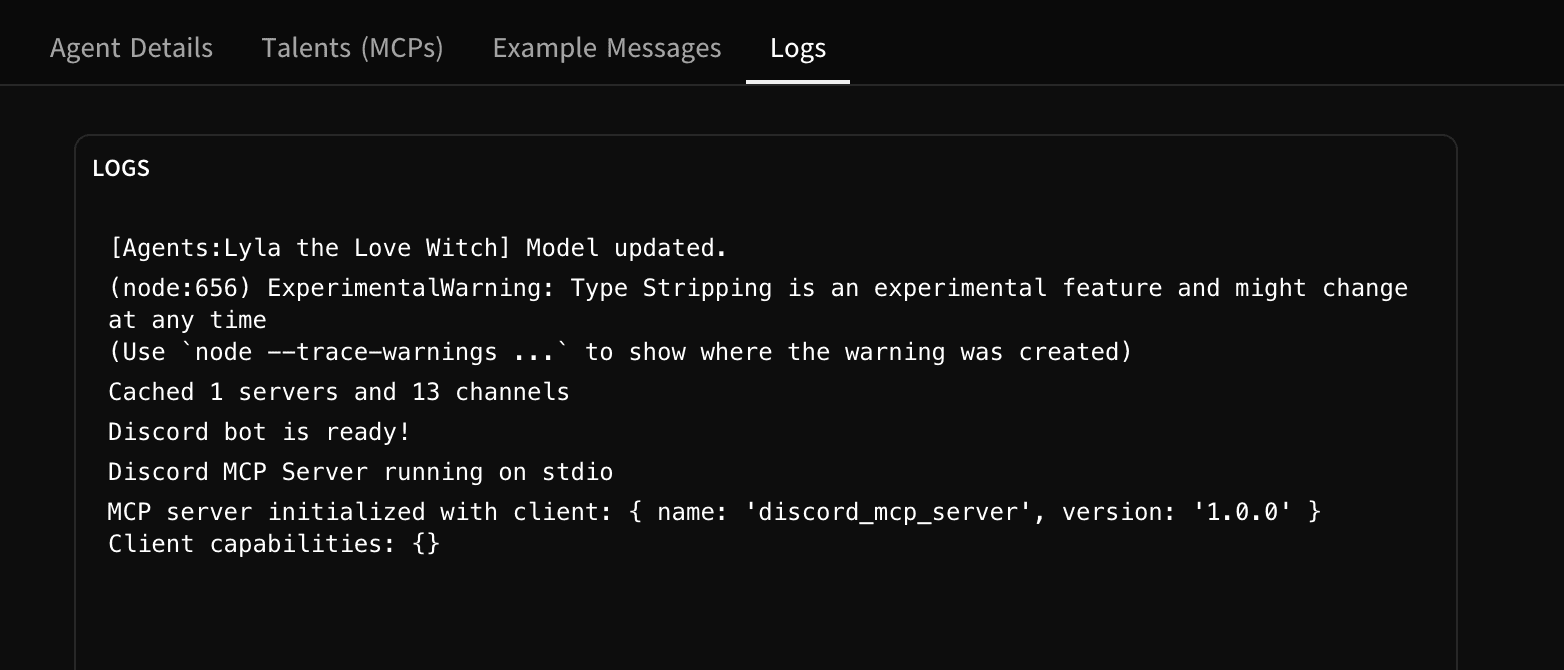
Logs tell you everything that is happening behind the scenes of your agent. It's useful for finding out if your MCPs are connecting correctly and what messages the agent is observing while watching the connected channels.
How is this guide?